Creating multiple surfaces from thickness maps
You can use a thickness map to generate a dense surface for an event under the condition that you have a dense reference surface available. The generation of this dense surface from a thickness map can be performed with the Surface from Map tool. The thickness maps themselves cannot be integrated into the 3D Structural Modeling workflow or the 3D Grid workflow. However, any dense surface created from a thickness map can be used in these workflows, if the event is assigned to the stratigraphic model that will be used in the workflow.
You can use the Surface Stack from Maps form to quickly generate a set of surfaces using thickness maps (based on markers) under the following conditions:
- You have two (dense) reference surfaces, either assigned to a surface set or to a seismic interpretation.
- You have at least one thickness map based on the top reference surface and a marker.
- You have at least one thickness map based on the base reference surface and a marker.
- You have at least one thickness map based on the markers.
- For each event (that is only present as a marker) you want to generate a surface for, the event is present as a top event in one thickness map and as a base event in another thickness map. These thickness maps must be selected as input.
When the conditions mentioned above are met, you can use the form to create a surfaces from a stack of thickness maps. Fill in all the required fields on both tabs before actually creating the surfaces.
 Stack tab
To create the surfaces
-
In the Surface stack drop-down list, select Create new. You can type a name in the adjacent text box.
- In the Input section of the form, select a source model. This can either be a surface set or a seismic interpretation. The selection you make here will fill the drop-down lists for the reference surfaces with all available surfaces contained within the model.
- For the Top reference surface, select a surface from the drop-down list.
- For the Base reference surface, select a surface from the drop-down list.
- The selection of your top and base surface will populate the Thickness Maps table.
- Select the thickness maps that you need to create the surface(s).
- Under Settings, select the stacking method.
-
- When you select Proportional, the selected thickness maps are used to create surfaces in case the event is not represented by a surface yet. The surfaces will be modeled proportionally between the top and base reference surface. The minimal selection of thickness maps must include a thickness map that contains the top reference surface as a top event, a thickness map that contains the base reference surface as a base event, and all the thickness maps containing markers only as top and base event.
- When you select Stack-Up, the selected thickness maps are used to create surfaces in case the event is not represented by a surface yet. The surfaces will be modeled between the top and base reference surface, starting from the base reference surface. The minimal selection of thickness maps should include a thickness map that contains the base reference surface as a base event and a marker as top event.
- When you select Stack-Down, the selected thickness maps are used to create surfaces in case the event is not represented by a surface yet. The surfaces will be modeled between the top and base reference surface, starting from the top reference surface. The minimal selection of thickness maps should include a thickness map that contains the top reference surface as a top event and a marker as base event.
- Under Output, select the surface set to which you want to add the generated surfaces.
- In the Target surfaces information box, the names of the surfaces that will be created are listed.
- Due to limited accommodation space for the stacking, JewelSuite may not honor your input thicknesses. You can check the Generate "Stacking Residual (QC)" option to create a residual property under your input thickness map. This residual property is output thickness minus input thickness.
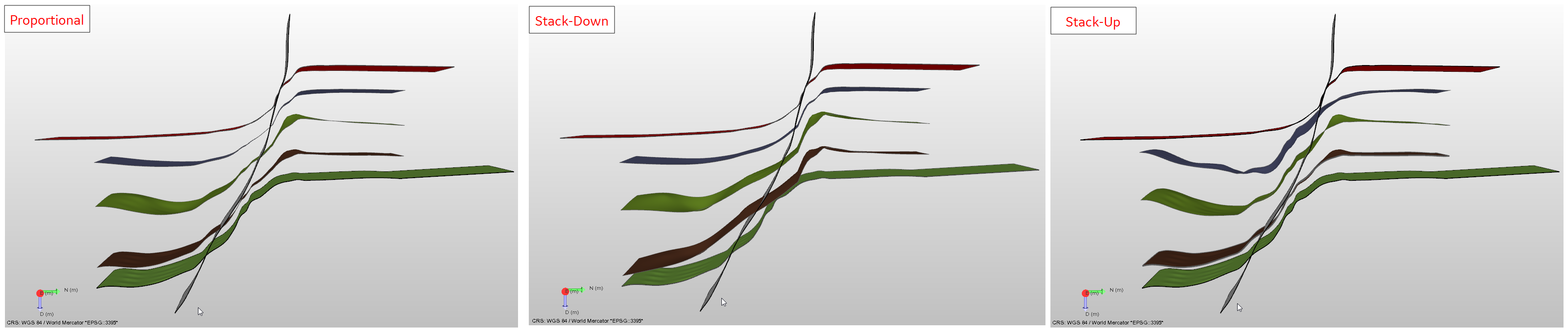
Example showing the result of three different stacking methods to create a surface set from your thickness maps. click to enlarge
If you want to perform well matching, you can specify the settings on the well match tab.
From the Marker set drop-down list, select the marker set that you want to use for well matching. After specifying a method click Apply to create a surface, apply the well match and keep the form open, or click OK to create a surface, apply the well match and close the form.
Depending on the selected stacking method, well matching is applied as follows:
- Proportional - All surfaces are generated, well matching is then applied simultaneously to all surfaces.
- Stack-Up/ Stack-Down - Surfaces are generated and well matched sequentially. Therefor the well matching has an impact on the generation of subsequent surfaces.
Click Apply to create the surfaces and keep the form open, or click OK to create the surfaces and close the form.